

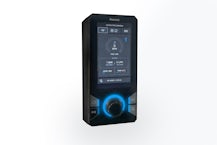




RioConnect User Guides
Everything you need to get the most from RioConnect.
Watch step-by-step video tutorials or download detailed PDF guides for setup, diagnostics, machine monitoring, and daily operation.
Getting Started with RioConnect
Learn how to connect your machine, navigate the dashboard, monitor live data, and use RioConnect features effectively.


Home Dashboard
Learn how to log in, navigate the main dashboard, understand status icons, view your machine list and use the map view.
Watch Now
Machine Status
View detailed information for a specific machine, including machine attributes, usage metrics, alert history and location status.
Watch Now
Telemetry Data
Use telemetry to analyse real-time and historical machine performance data.
Watch Now
Alerts Dashboard
Understand active alerts across your fleet and learn how to prioritise, investigate and configure notifications.
Watch Now
User Management
Manage user access levels, create new users and control what your team can see across locations.
Read moreDownload RioConnect PDF guides
Download the step-by-step RioConnect PDF guides.
RioConnect FAQ
Open your browser and go to rioned.connxt.eu, then enter your login details to access the dashboard.
Use the “Forgot password?” link on the login screen to reset your password.
The green checkmark means the machine is online and running normally without issues.
The red X indicates a critical error requiring immediate attention.
The orange warning icon highlights an issue that may need attention soon, such as low water or overdue service.
The blue lightbulb icon shows informational alerts that are useful to know but are not urgent.
From the Device Overview dashboard, locate your fleet list, right-click the machine and select either Status or Telemetry.
Open the machine’s Status page and use the Attributes tab to view:
Device ID
Serial number
Order number
Machine type
Next service due
Running hours
Yes. Use the Map tab to view machine locations geographically.
If the machine is offline or inactive, RioConnect defaults to showing the office or home base location instead of the live location.
Yes. In the machine Status page, open the Alerts or History section to view:
Open and closed alerts
Alert reasons
Event duration
Alert timestamps
Telemetry & Data
Open a machine’s Status page and click the Telemetry tab at the top of the screen.
RioConnect can display:
HP pressure (Bar)
Litres per minute (LPM)
Water levels
Fuel levels
Hose length
Water temperature
RPM
Motor state
Vacuum and pulsator status
Engine counters
Use the tick boxes on the left-hand side to select or remove data points, then click Apply Selection.
Open the Period and Data Points menu, select your start and end dates, then click Apply.
Yes. Click and drag over a graph section to zoom into a specific time period or event.
Yes. Hover over any graph point to see the exact reading, such as pressure or flow rate at a specific time.
Click the Alerts tab in the left-hand navigation menu.
Common alert types include:
Emergency stop
Water level low
Service overdue
Temperature too high
Open the alert menu using the three dots on the alert row, then choose:
Details
Investigate
Yes. RioConnect supports automated email alerts for selected machines and alert types.
Go to Notifications in the left-hand menu and:
Create a notification
Choose alert types
Select machines
Add email addresses
Save the notification
Yes. Use the “Hold notification between” setting when configuring notifications.
Go to:
Access Management → Users → New User
Then enter:
Name
Email
Language preferences
Customer role
Finally click Save.
Yes. RioConnect automatically sends an invitation email after the user is saved.
Top-level users can access all locations and machines, while sub-level users only see machines assigned to a specific site or location.
Yes. User visibility depends on which account or sub-location they are assigned to.
Yes. Click the Question Mark (?) icon in the top-right corner to open contextual help based on the page you are viewing.

Need more help with RioConnect?
For further support, contact the Rioned team. The PDF guides also include UK and international contact details for service and support.

Rioned UK
-
FreeFlow House
IP24 3RU Thetford
United Kingdom - +44 (0) 1638 713800
- Read more
- [email protected]
VAT: GB876489847
